Everything in Veurone Studio.
Make the videos with AI, design the learning around them, and share it in any language.

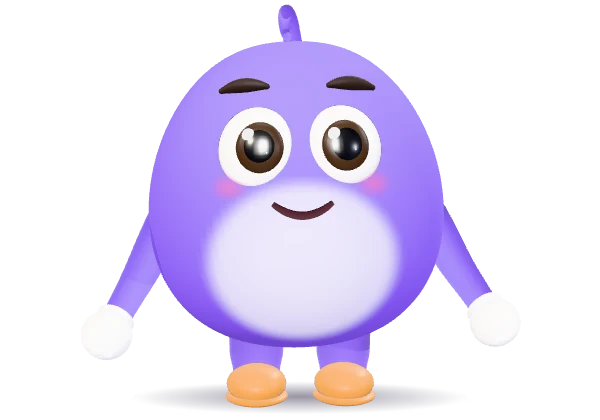
Your AI assistant
Give AI your documents or a web page, and it builds the video around your words.
- Reads PDFs, Word, PowerPoint, notes and web pages
- Asks first, with options to pick from
- Hands you the script before it builds anything
- Adds drawings and stock footage where they help
- Change anything by hand, or just ask
- What you change by hand stays yours
Characters that present
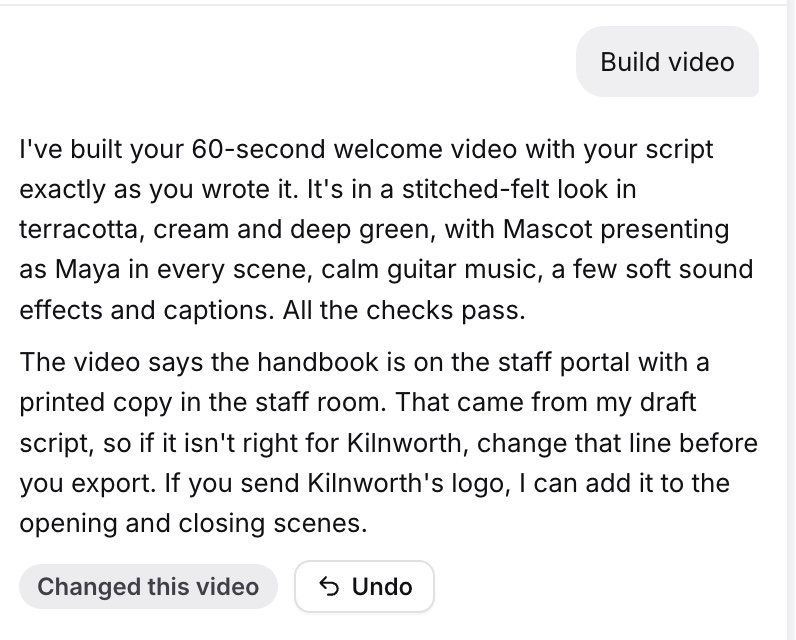
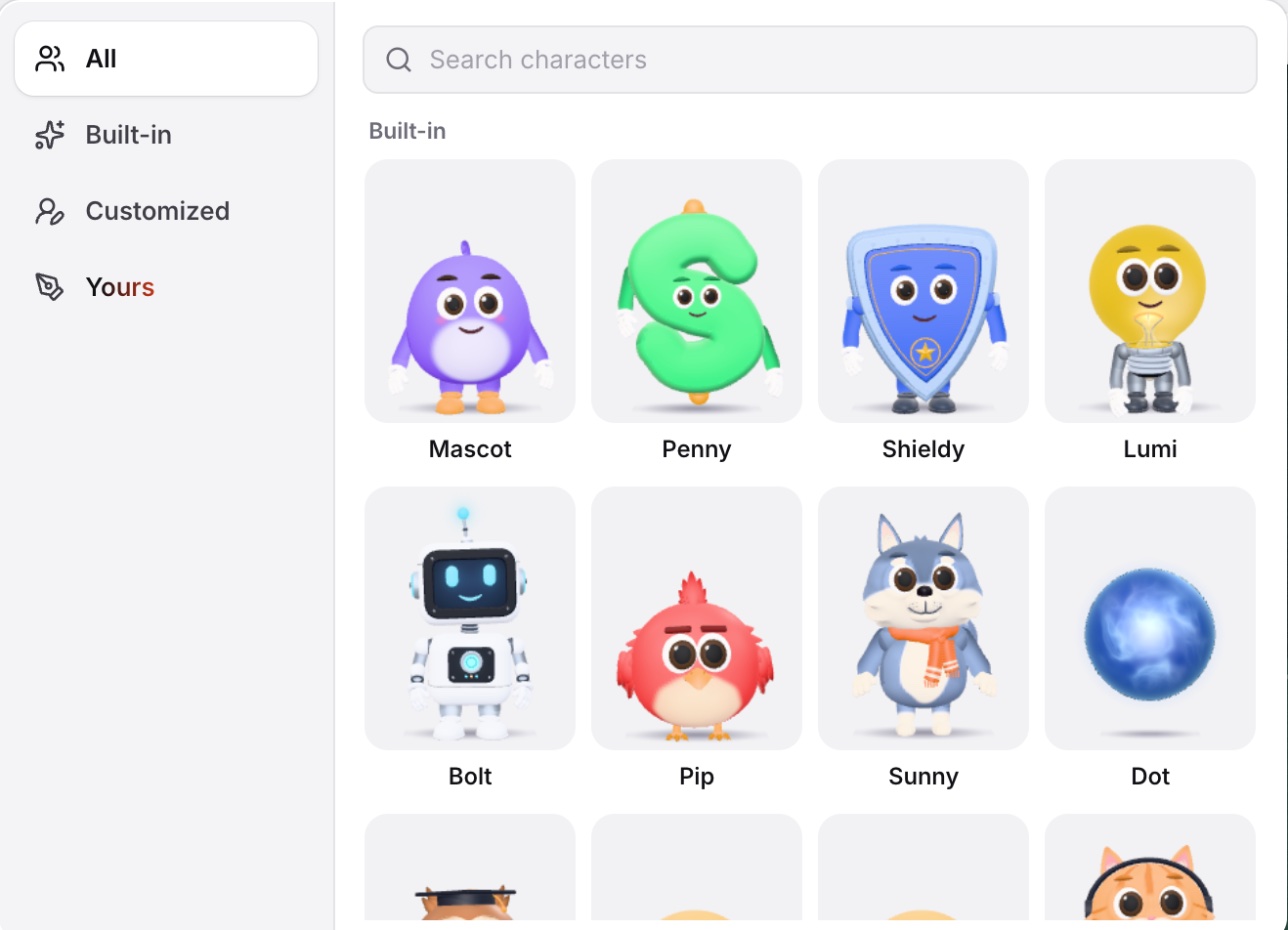
Twenty-one 3D presenters come with every plan. They speak your narration, point at what matters and react as the lesson goes. Or have your own made: as many as you like on a paid plan.
In 39 languages
Translate a video in one step: the voice-over, the captions and the words on screen. Change the original later and every language follows. On every paid plan.
- 39 languages, every voice in each of them
- Right-to-left languages too
- One link: viewers pick their language
- A glossary for a course and a tone for each language, which AI follows
- The learner’s buttons, quiz and certificate in their language

Voices for every lesson
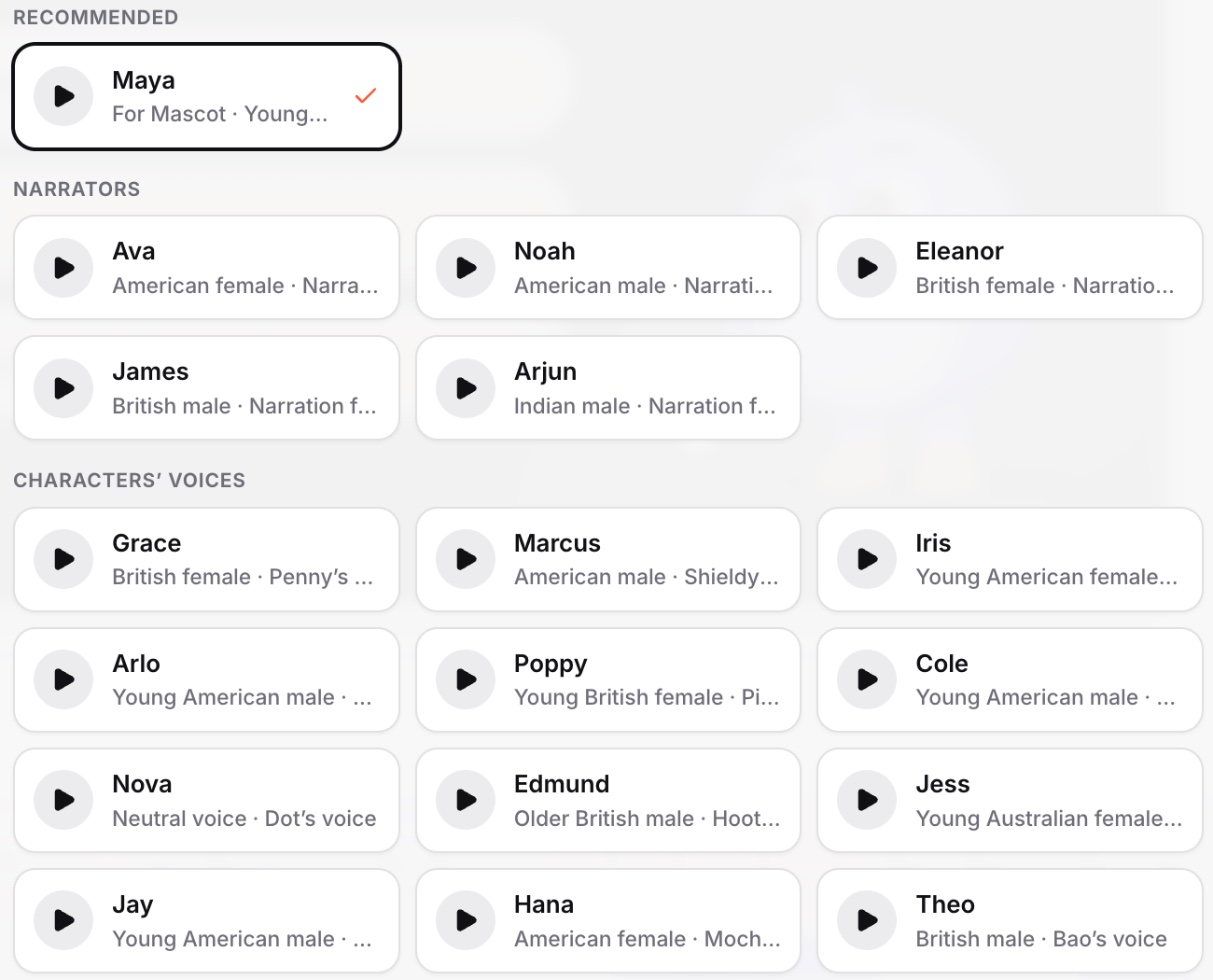
26 voices that speak every language, on every plan, the free one too. Each built-in character has a voice of its own, and you can switch to any other.
- Lines said with feeling, like excited or in a whisper
- From your plan’s voice minutes
- Scenes timed to the narration
- Captions made from the narration
Animation, scene by scene
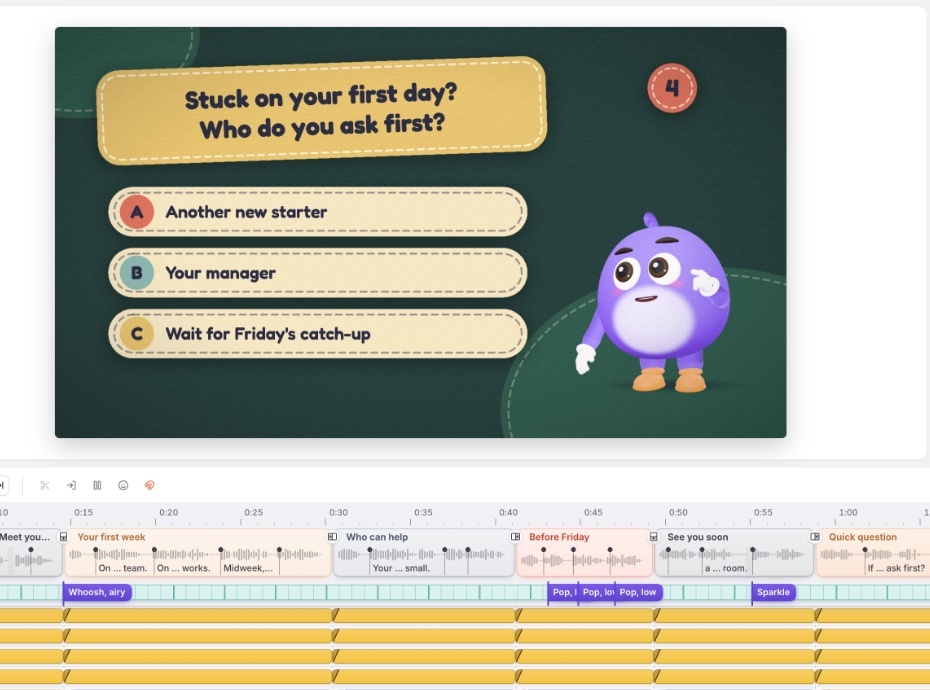
Scenes on the left, the video in the middle, a timeline below. Click anything to change it, drag it on the timeline, or ask AI.
- Over 200 animations and transitions
- Charts, counters, maps and diagrams that build as you speak
- A pointer, clicks and zooms for software training
- Icons, flags, illustrations and a 3D globe
- Stock photos and footage, built in
Music and sound effects
52 music tracks and 70 sound effects, all made by Veurone, so there’s no licence to check. Or add your own.
- Music for every mood, from calm to upbeat
- Effects for what happens on screen
Your brand on every video
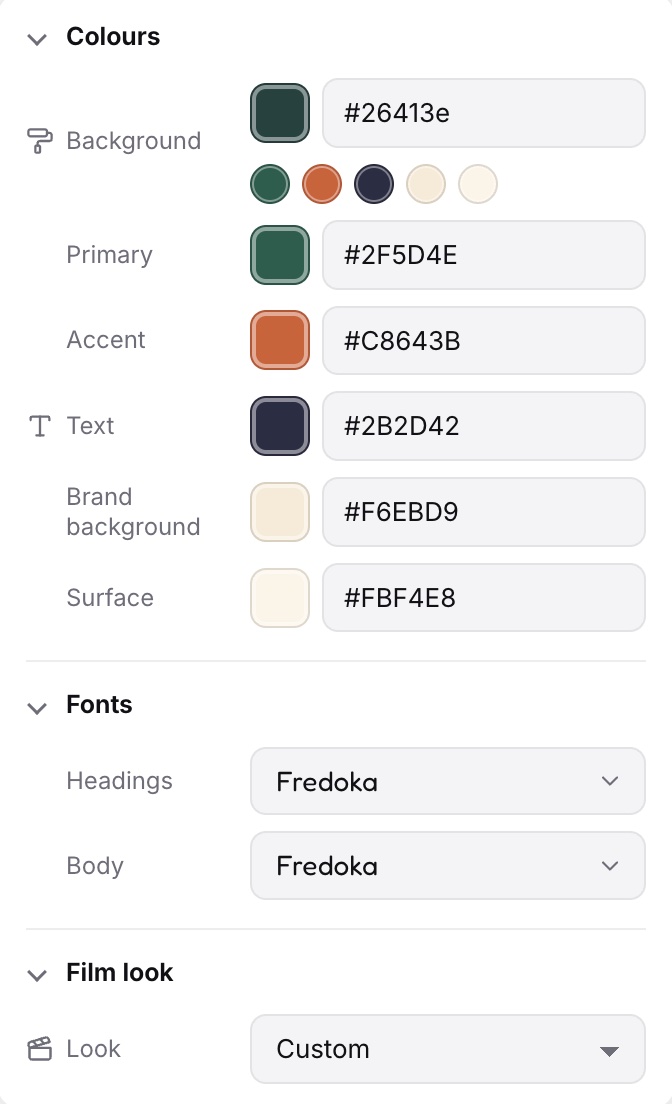
Add your colours, fonts and logo once, or let AI read them from your website or brand guidelines. New videos start in your brand.
- A brand for each client, with a folder of its own
- Guidelines AI follows
Courses
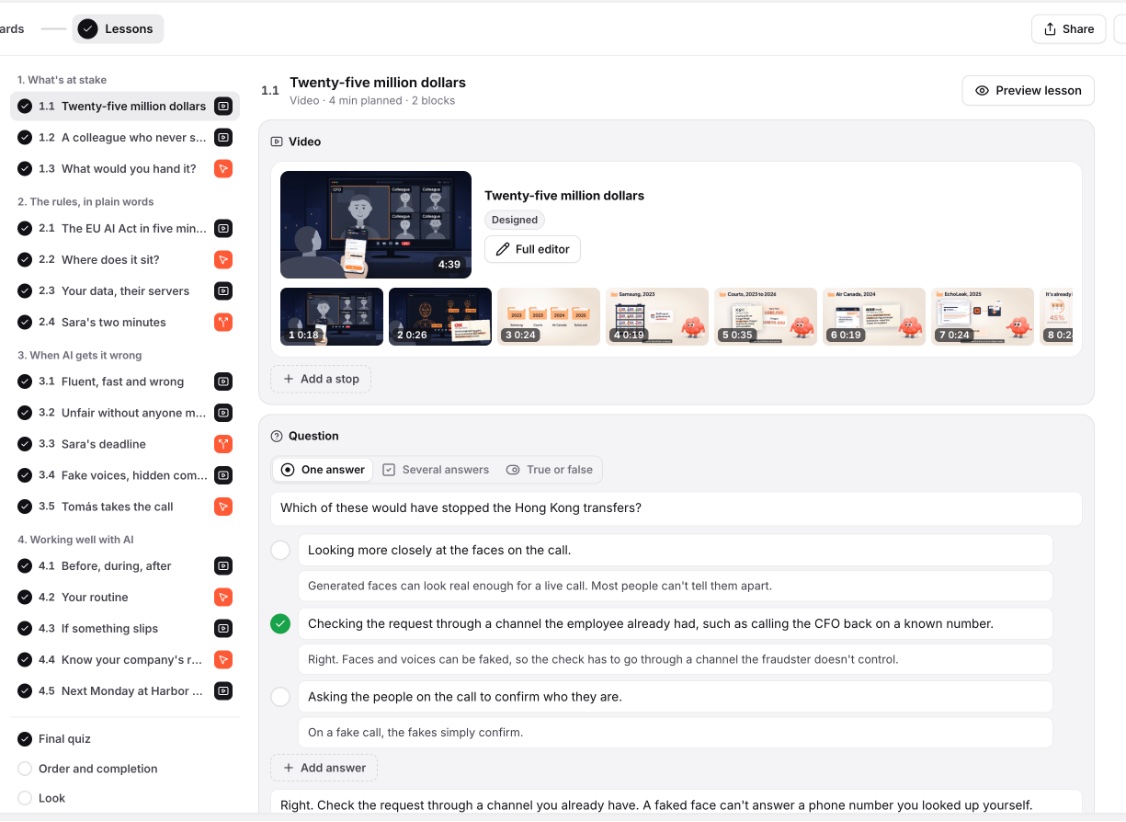
Design a whole course: the brief, the design, a storyboard for each lesson, then the lessons. You approve each stage before the next one starts.
- Lessons with video, short text and practice
- Practice: hotspots, ordering, matching, sorting and fill in the blanks
- Branching scenarios, and videos that stop for a question
- A final quiz with a pass mark and the tries you choose
- The course design as a Word document
Your own videos, made interactive
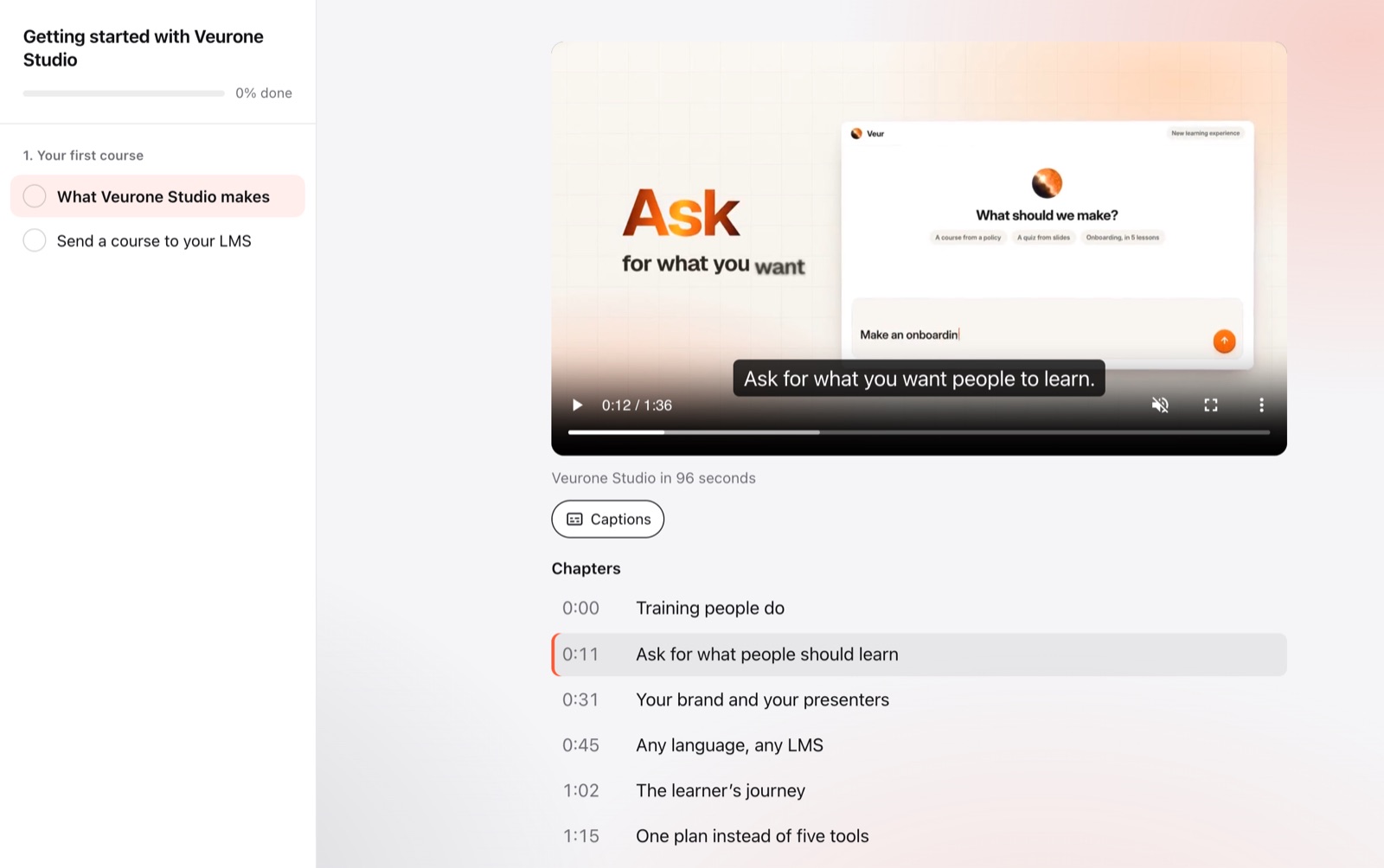
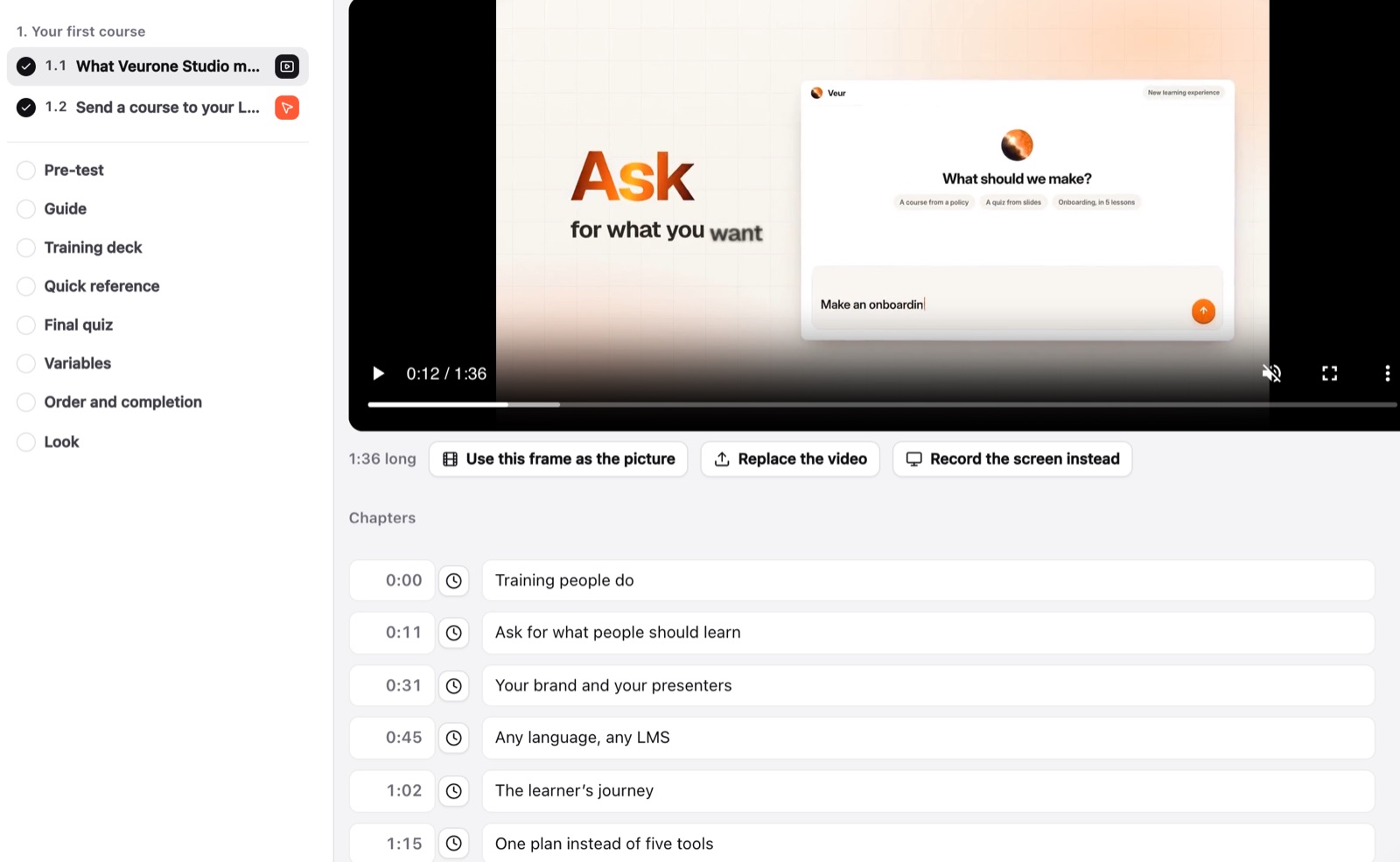
Add a video you recorded to any lesson. Make its transcript in Veurone Studio, then add chapters and questions at the moments that matter. On every plan.
- Captions, chapters and a transcript learners can search
- Questions that stop the video at a moment
- A video that won’t play everywhere is converted on your device as you add it
- Each line of the transcript yours to edit
Record your screen
Record from a lesson’s video block, and it’s added like any video, ready for a transcript, chapters and questions. On every plan.
- The screen, a window or a browser tab
- In the Windows app, and on Macs before macOS 15, the whole screen
- Your voice from the microphone
- Trimmed and converted on your device
Software practice
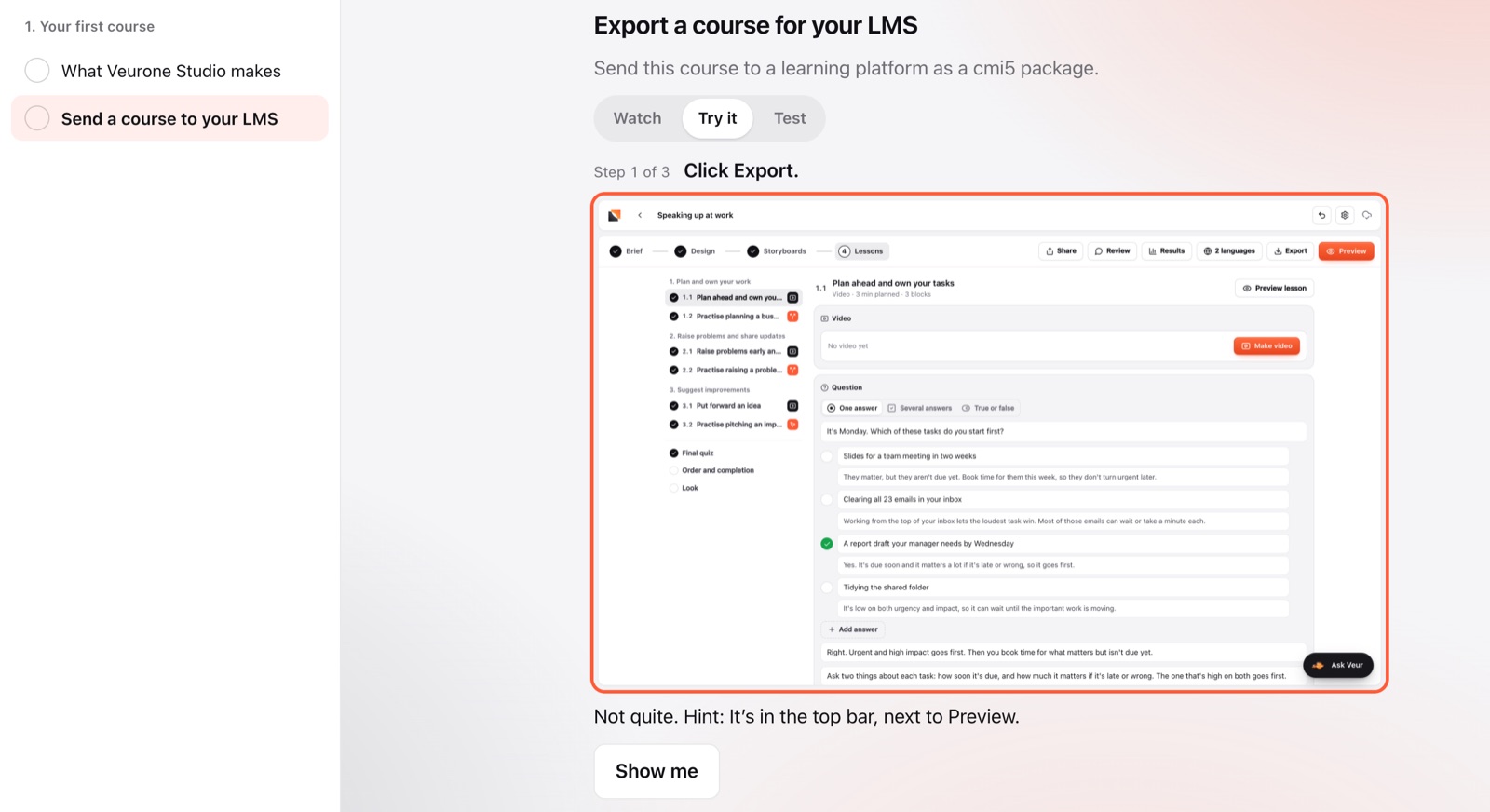
Teach a piece of software in steps, on screenshots. Learners watch it done, try each step themselves, then take a test.
- Watch, Try it and Test in one block
- A hint when a click misses, and Show me
- Screenshots from moments of your own video, or pictures you add
- Each step of the test in your results
Role-plays and answers in their own words
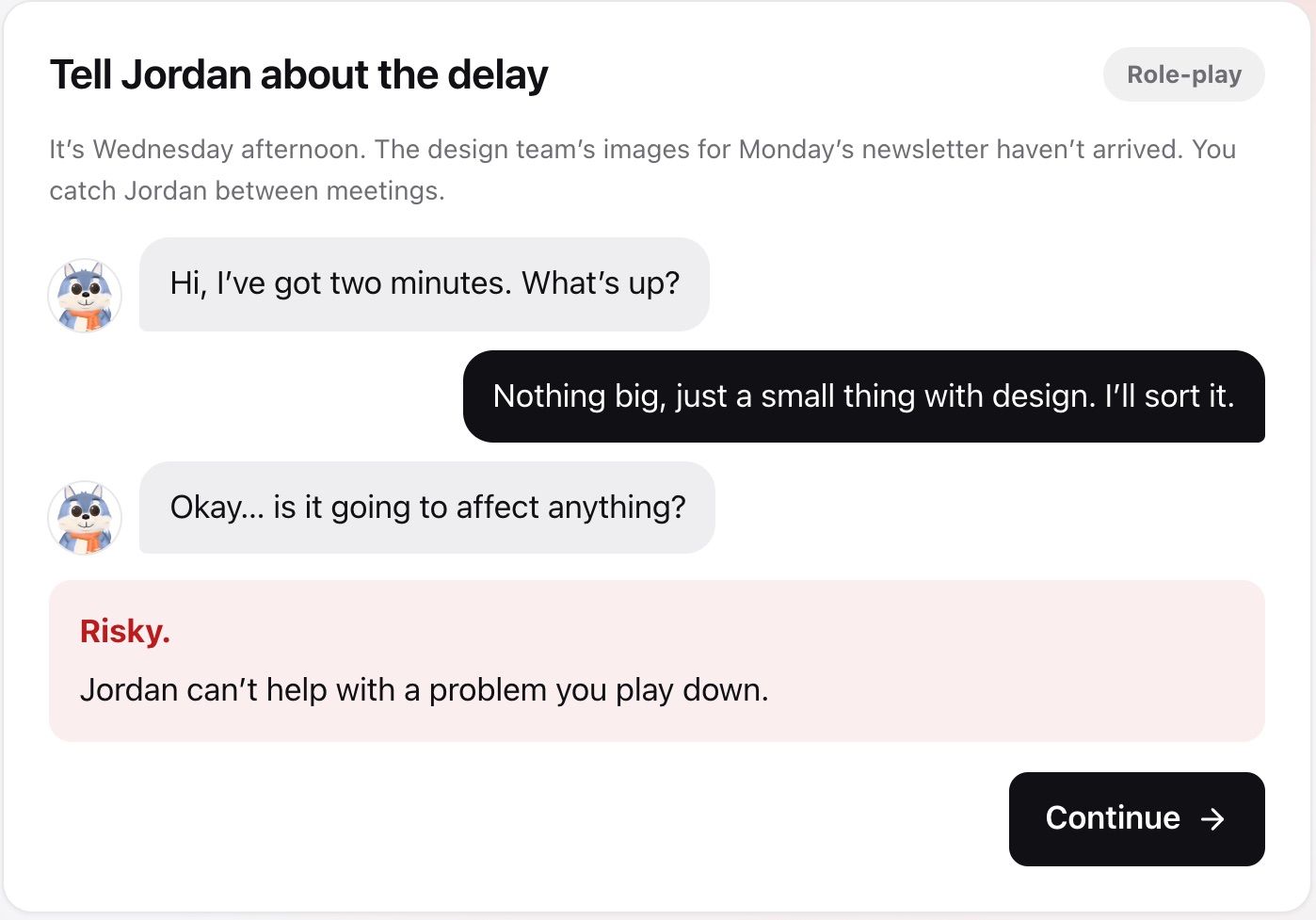
Learners write an answer, then compare it with your good answer and tick the points they covered. A role-play is a prepared conversation: at each line, learners pick a reply and see your feedback on it.
- Your good answer, and the points it should cover
- Replies rated best, okay or risky, each with feedback
- AI writes the conversation when it builds the course
- No AI marks your learners
Branching scenarios
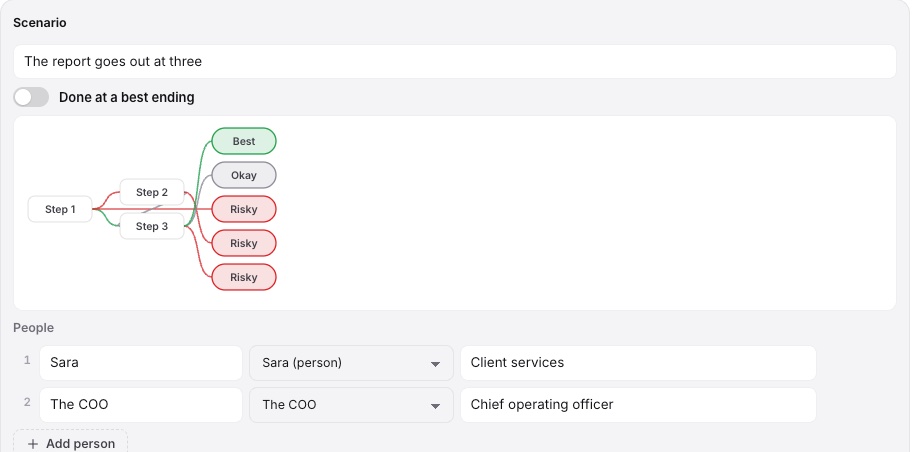
Put learners in a real moment and let them decide what to say. The story changes with each choice, and ends best, okay or risky.
- Your characters play the people, and your guide coaches
- Videos that stop after a scene to ask a question
- A wrong answer can send learners back to watch again
- Or each answer can lead to its own scene
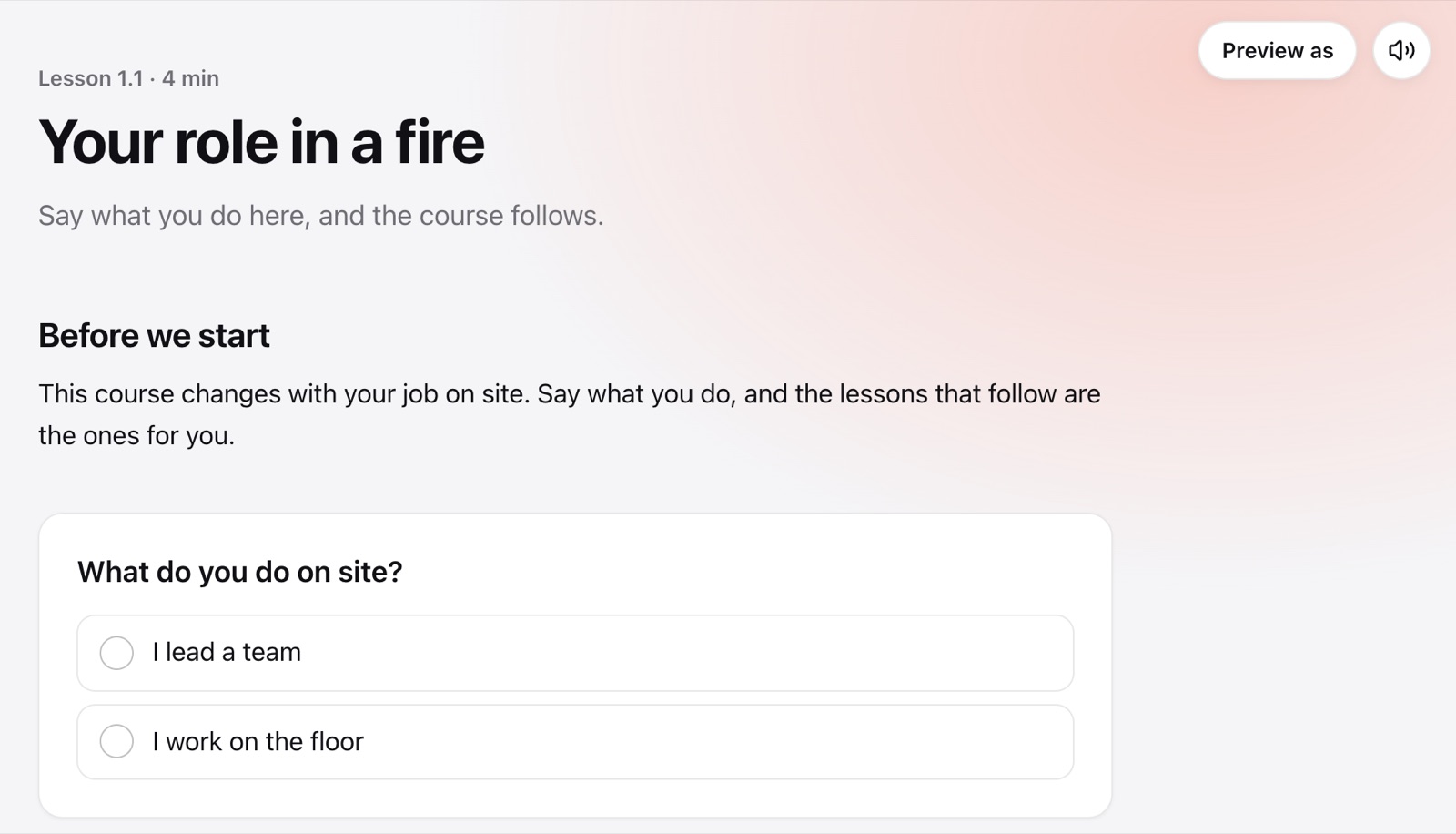
Lessons for each learner
A course can remember things about each learner, like their role. Ask them with a Pick block, then show each lesson or part only to the people it’s for.
- Show only when, for a lesson or a part of one
- Then, for what a choice does next
- Spots on a picture that open a layer
- Preview as, to see the course as each learner does
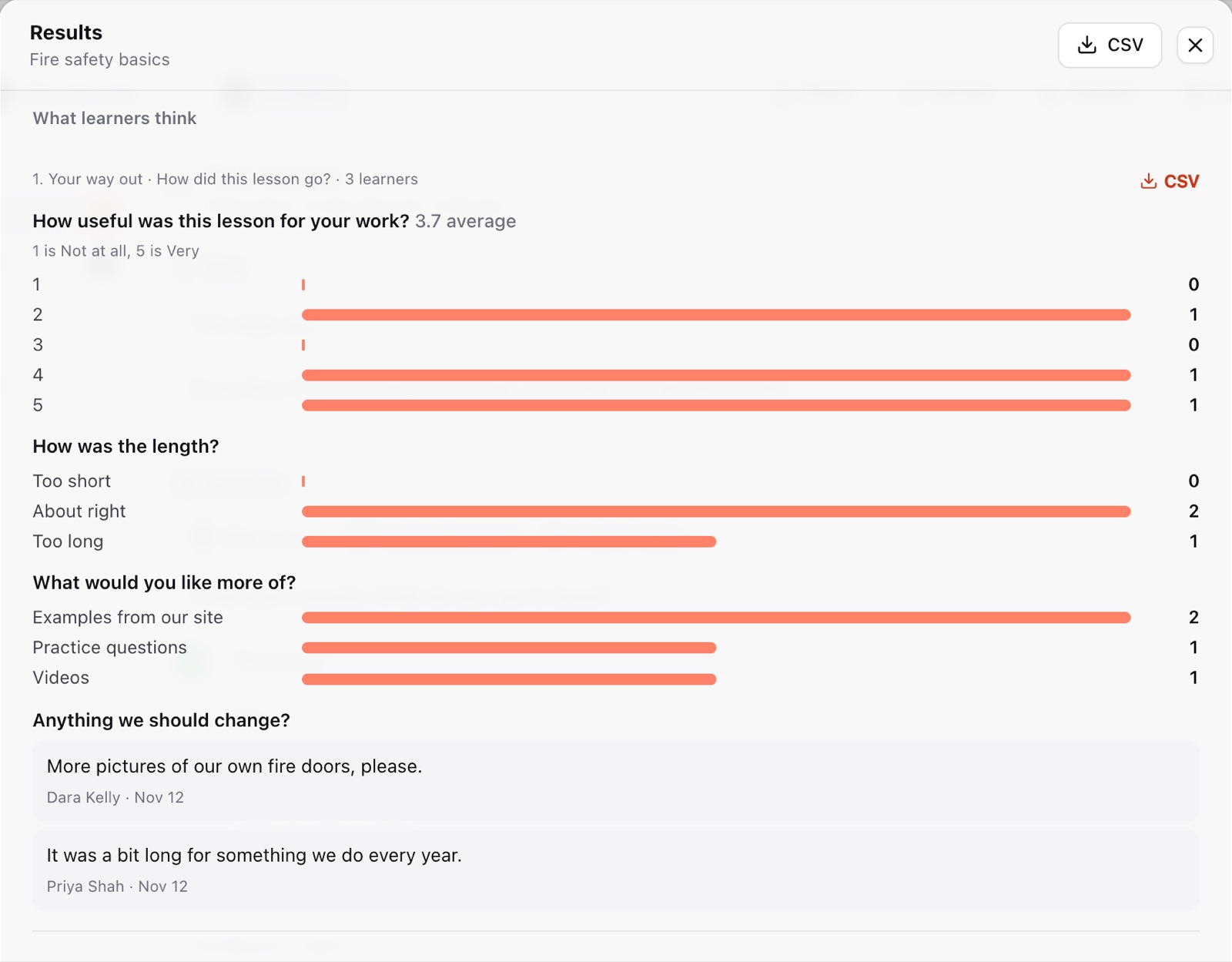
Surveys and a pre-test
Ask learners what they think with a scale, a choice or their own words. Nothing is scored. A pre-test before the first lesson lets them skip what they already know. On every plan.
- Every answer in Results, with names and a CSV
- A survey holds the lesson back only when you mark it required
- Pre-test: one try, and each lesson they get all right counts as done
- The final quiz and the certificate stay as they are
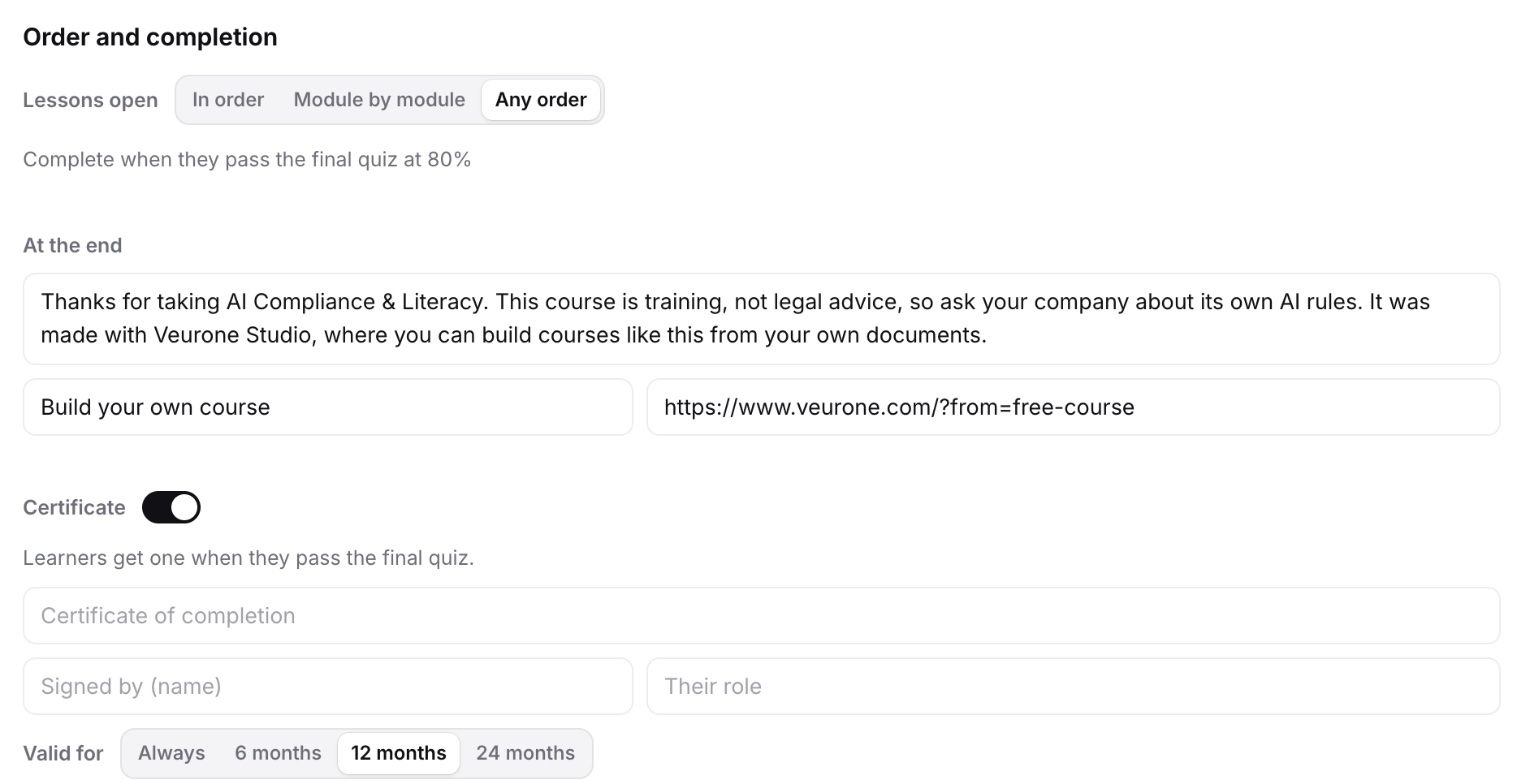
Certificates
Learners get a certificate when they pass. Anyone can check it’s real with its code.
- Issued on a pass, or when they finish
- A link to check it, with an expiry if you want one
- Withdraw one when you need to
- Learners can add it to LinkedIn
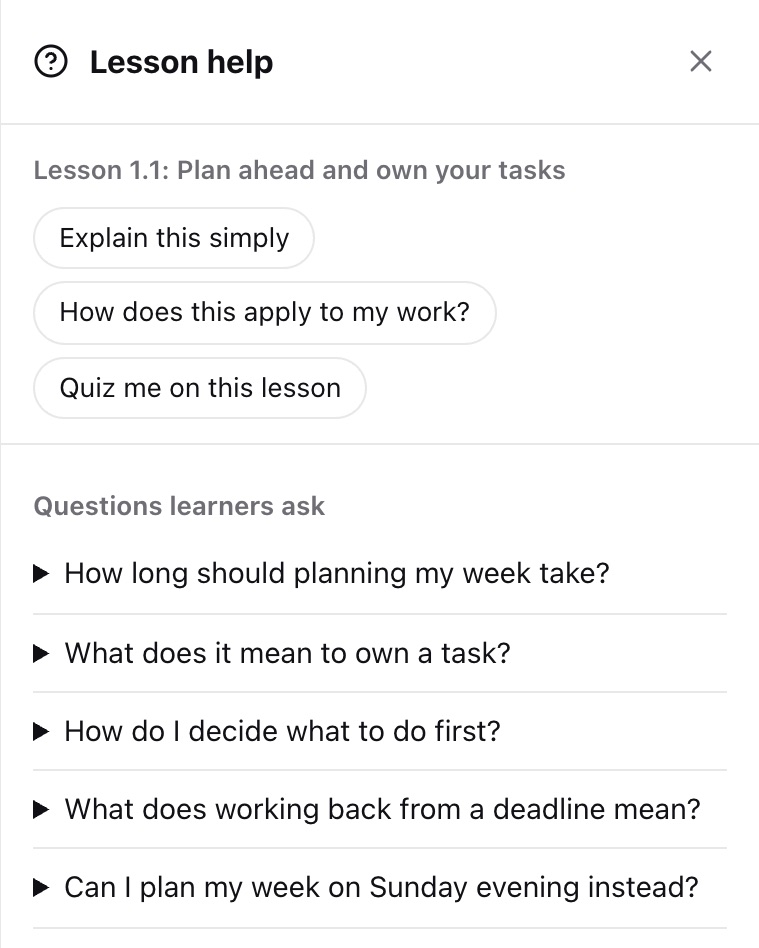
Lesson help
Give each lesson help learners open beside it: the lesson in plain words, how it applies at work, practice questions and answers to what they’re likely to ask. You write it, or AI does when it builds the course. On paid plans.
- A question learners type is matched to your answers on their device
- Learners can send you one it doesn’t answer, and one click adds your answer
- No AI answers your learners
- In links, websites and SCORM
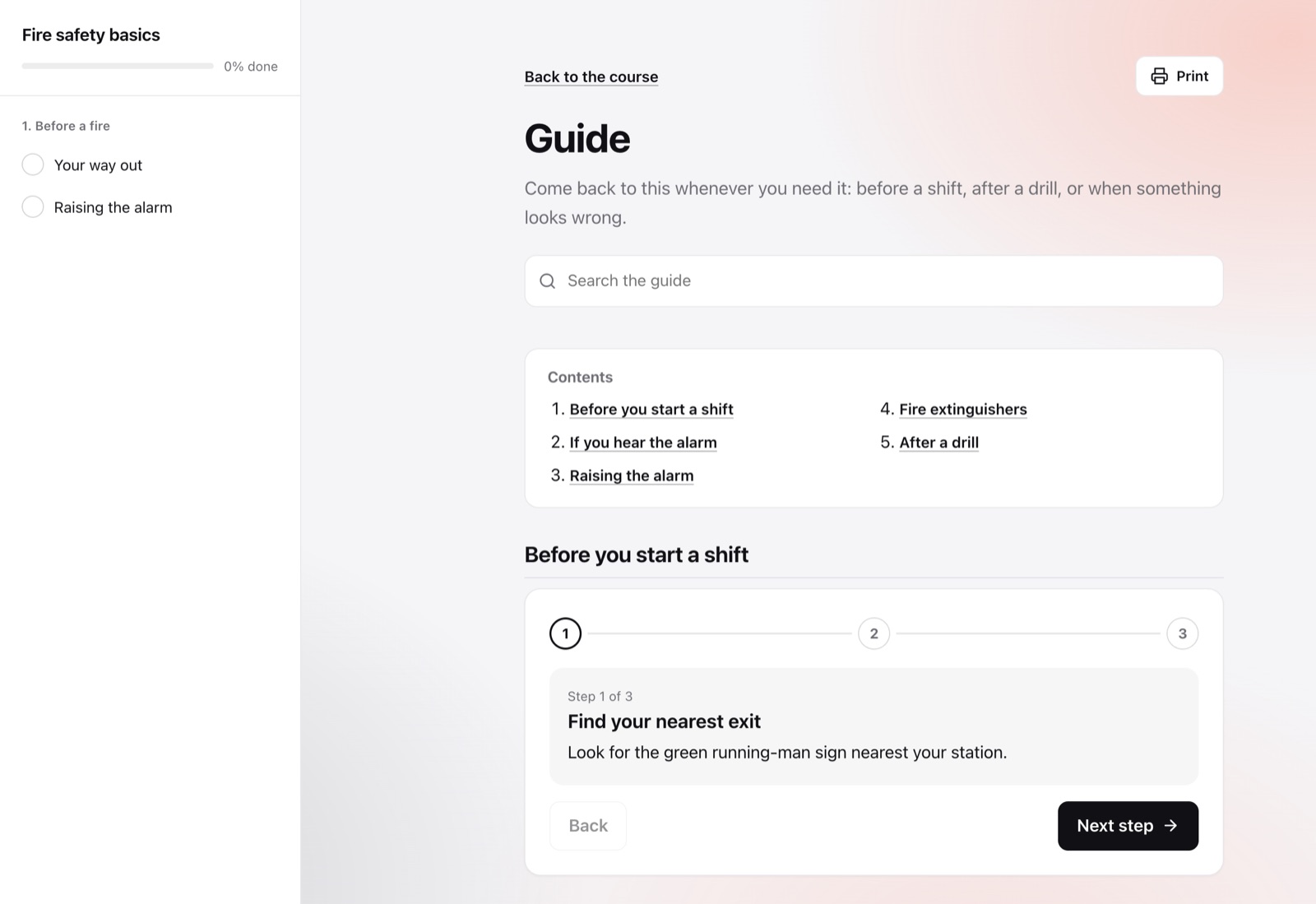
A guide, a training deck and a quick reference
Give a course a guide learners come back to and search, a training deck to present to a group with your speaker notes, and a quick reference that prints on one page. On every plan.
- In the course’s look and languages
- Opened from the course’s link, and printed
- Speaker notes stay off the link unless you show them
- Or ask AI for a training kit
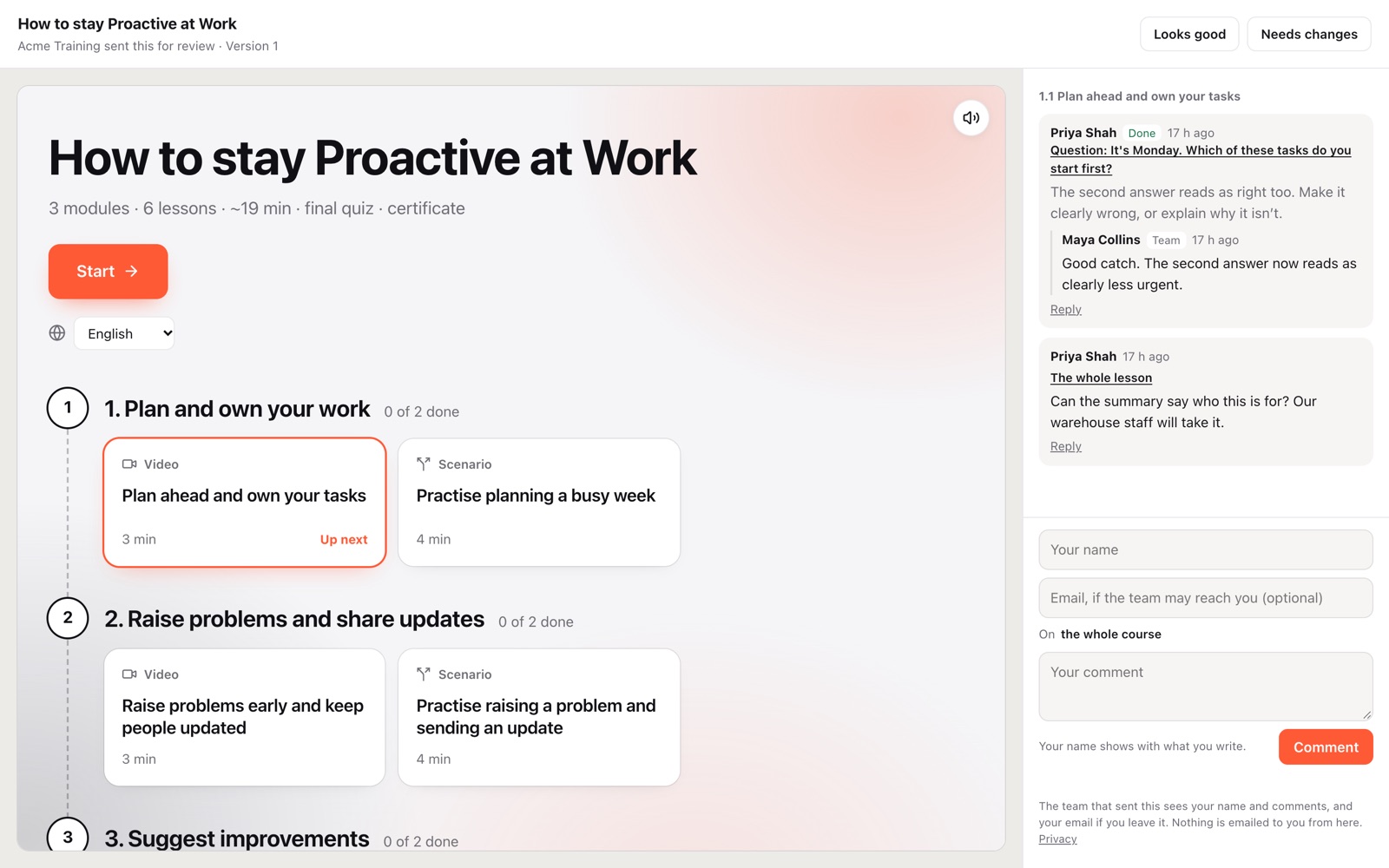
Review links
Send a video or a course for review and get a private link. Whoever you send it to comments without an account: on a moment and a spot in a video, or on any part of a lesson. On paid plans.
- They say it looks good, or that it needs changes
- Their comments show up in Veurone Studio, where you answer them
- A new version goes to the same link
- A passcode and an end date if you want them
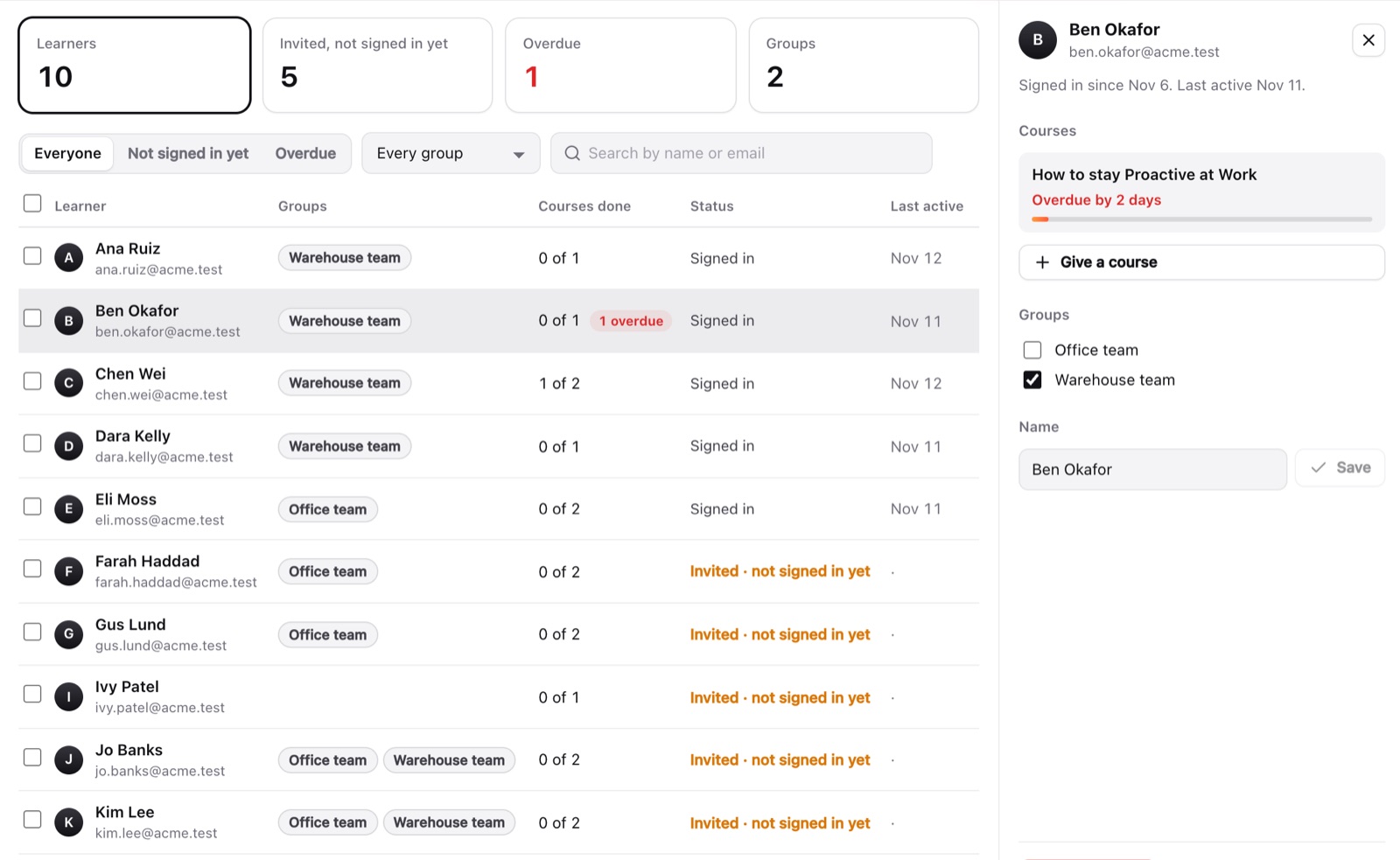
Your learners
Invite people by email, or with a spreadsheet. They sign in at learn.veurone.com with a code we email them, see their courses, and their progress follows them to any device. On paid plans.
- Courses for invited people only
- On Business: groups and due dates, with reminders before and after
- On Business: reminders to renew a certificate, and results for each group
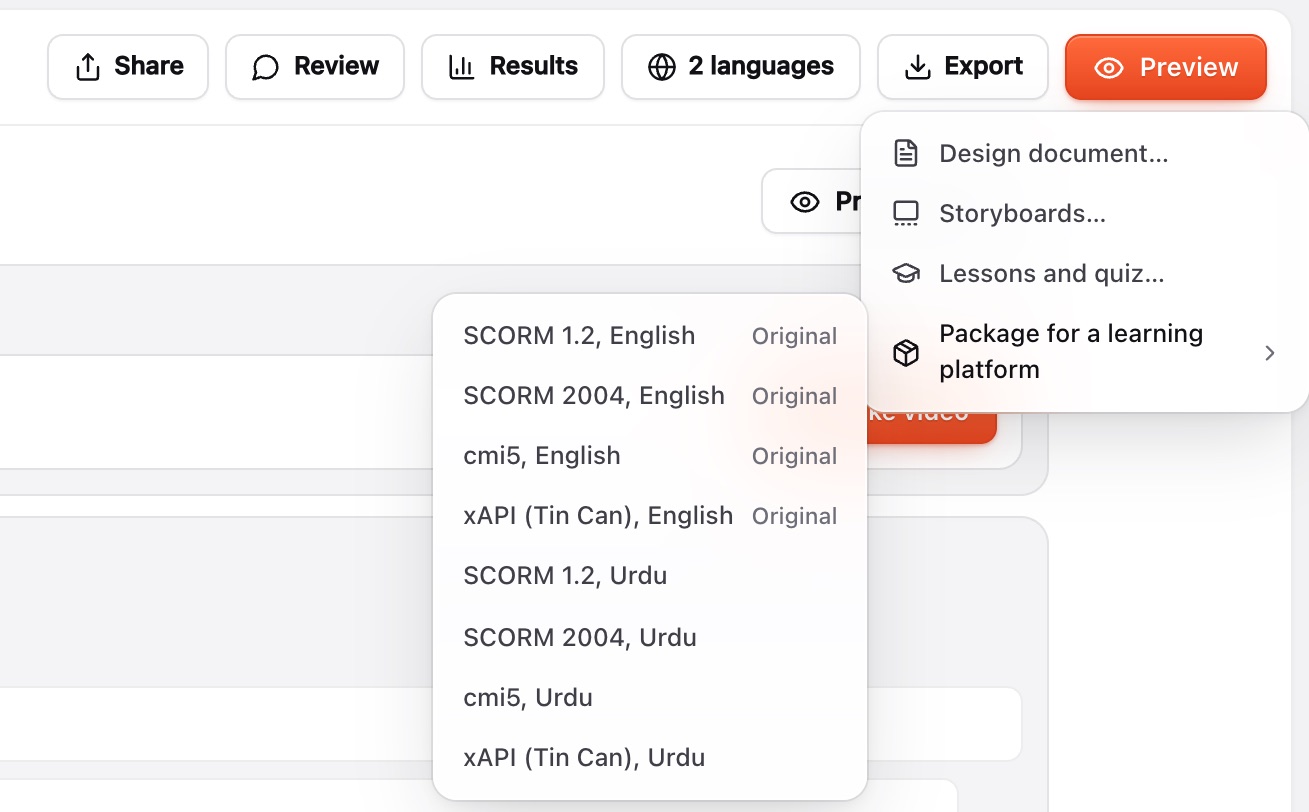
SCORM for your LMS
Export a course for any LMS or learning record store. With connected SCORM, you add it to your LMS once: it updates when you publish, and results come back. On every paid plan.
- SCORM 1.2 and SCORM 2004
- cmi5 and xAPI, for a learning record store
- Scores, progress and answers sent to your LMS
On every computer
Use Veurone Studio in your browser, or in the app for Mac and Windows. Sign in, and your projects are there.
- The app works offline, except for AI
- Deleted files kept for 30 days
Bring your own AI
Connect your AI in one step, the same in the app and on the web, and it runs on your own plan. Claude works in both. ChatGPT works in the app, and it’s coming soon to the web.
- Already in Claude or ChatGPT? Add Veurone there
- The same account and plan either way
 AI

Exports
Downloads come with every paid plan.
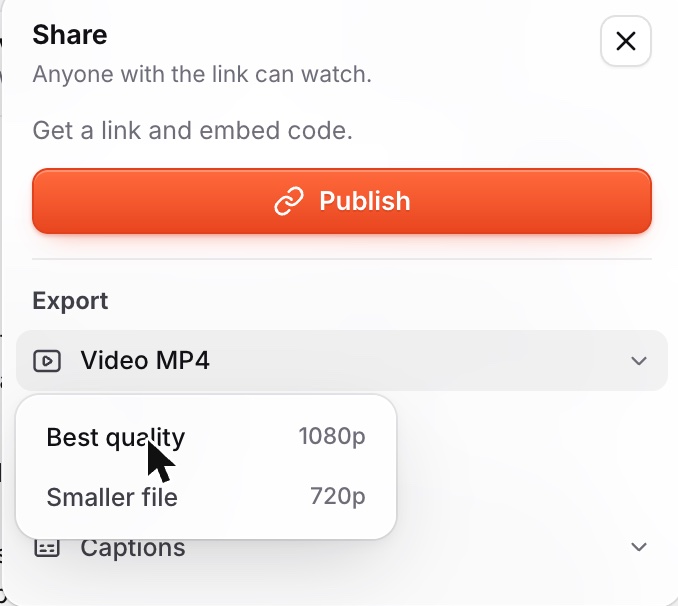
- MP4 in 1080p at 60 frames a second, or a smaller file
- Sound only
- A frame as a picture
- Captions as SRT or VTT
Version history
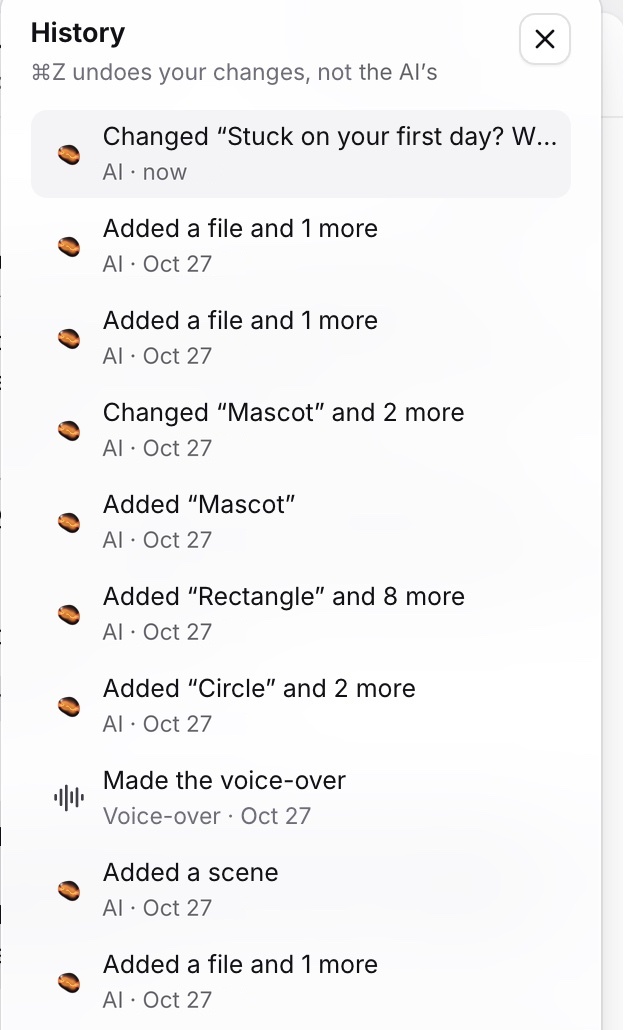
Go back to any version, even when AI has been working too.
- Versions kept for three months
- Undo takes back only your changes
- See what AI changed
Security and your data
A security page written for reviewers, and a data processing agreement under the GDPR and the UK GDPR. It’s part of our Terms, so it applies without a signature.
- A PDF of the agreement to sign, if you need one
- Sign in with a one-time code, so there’s no password to leak
- Encrypted in transit and at rest
- Each account reaches only its own data
- No ads, no trackers, and no AI trained on your work